Dune Firmware

Dune Firmware

[vc_row][vc_column width=”1/3″][vc_column_text]

Dune HD Pro 4K


Version “180426_1318_r13” (the latest stable version)

Download:
Changes since 180320_1247_r13:
- New feature: Google Play Store and Google Services support added, with a
  unique possibility to easily enable/disable Google Services depending on
  user needs (when disabled, they are not installed, do not perform various
  things in background, do not consume system resources). Google Services
  are initially disabled and are automatically enabled when pressing
  "Google Play Store" icon in "Android applications" section for the first
  time. After Google Services are enabled, they can be disabled by
  resetting settings to factory defaults.

- New feature: Added a new setting "Audio / Digital audio connector" with
  options "HDMI (HD audio enabled)" (default) and "S/PDIF (HD audio
  disabled"). Should be set to "S/PDIF (HD audio disabled)" when outputting
  audio in bitstream mode to S/PDIF (or to HDMI equipment not supporting HD
  audio).

- New feature: Added setting "Setup / Misc / Encodings / Subtitles
  encoding" which allows to specify subtitles encoding (same as on Sigma
  models).

- New feature: REPEAT and SHUFFLE functions for playlists are now
  implemented (same as on Sigma models).

- New feature: Sleep timer is now implemented (same as on Sigma models,
  works only when working with Dune HD GUI). By default it is disabled. It
  can be enabled via the new setting "Setup / Misc / Power manamenent /
  Sleep timer".

- New feature: Discrete power-on and power-off IR codes are now supported
  (codes 5F and 5E, same as on Sigma models).

- Improvement: List of audio tracks and subtitle tracks now shows more
  information (and more correct information) about tracks.

- Improvement: YouTube icon (in "Android applications") now installs a
  newer version of YouTube, with 4K video support.

- Improvement: CEC is now disabled by default.

- Improvement: VFD display now shows current time in 24 hour format (same
  as it is shown on TV screen).

- Improvement: In initial setup wizard, the suggested by default timezone
  is now automatically detected based on GeoIP (when Internet is
  accessible).

- Improvement: In initial setup wizard, if the connected TV supports 4K, 4K
  resolution is now recommended by default.

- Improvement: When UI Type 1 is used, "Android applications" section is
  now also available.

- Improvement: When UI Type 2 is used, the "Applications" tab now has a
  proper title "Applications" (rather than "Dune HD Applications").

- Improvement: On power-on, an unneeded extra HDMI reinitialization took
  place.

- Improvement: In System setup menu, some unneeded and non-working
  Android-related settings are removed.

- Improvement: Debug dump now includes more useful information.

- Bugfix: It was possible to exit standby mode by various wrong IR codes.

- Bugfix: It was possible to exit standby mode by switching the connected
  HDMI equipment on/off.

- Bugfix: Some AVI files could not be played.

- Bugfix: Playback crash could happen when stopping or finishing playback.

- Bugfix: Player could randomly reboot in some rare cases.

- Bugfix: When saving debug dump to NTFS-formatted storage device, the
  system could hang.

- Bugfix: SD cards were wrongly mounted read-only.

- Bugfix: In some rare cases, GUI could stop responding to any RC button
  presses.

- Improvements for PHP plugins and PHP API:

   - New feature: New action "RESTART" is introduced, with parameter
     "reboot" (possible values "yes" and "no"), which allows the plugin to
     request GUI restart or full reboot. 

   - New feature: "PLUGIN_OPEN_FOLDER" action is extended with the new
     parameter "sel_id", which can be used to preselect the given item in
     regular folders (value is media_url of the item to preselect).

   - New feature: For TV plugins which support TV archive (catchup),
     LEFT/RIGHT RC buttons can now be used to switch to archive mode and
     seek in the archive even in Live TV mode. For TV plugins which do not
     support archive, LEFT/RIGHT RC buttons are now correctly ignored in
     Live TV mode.

   - New feature: "PLAYBACK_STOP" action now supports the following
     additional parameters: "plugin_vod_stop_position",
     "plugin_vod_duration", "plugin_vod_start_tm", "plugin_vod_stop_tm",
     "plugin_vod_prebuffering_end_tm".

   - Improvement: When loading images from HTTPS, the performance is now
     improved.

   - Improvement: When PHP plugin uses auto-resume functionality,
     "ip_address_required" setting is now enabled by default for this
     plugin.

   - Improvement: Icon archives are now loaded with improved performance
     and reliability.

   - Improvement: folder ".platform.android" can now be used to store
     Android-specific versions of platform-dependent plugin files (such has
     native executables) in the plugin (similar to ".platform.87xx" folder
     that can be used for SMP87xx-specific files).

   - Bugfix: "/tmp/run/ext_command.state" was not implemented; now it
     contains the information about current playback state (same as on
     Sigma models).

   - Bugfix: Playback timer did not work.

   - Bugfix: Saving/restoring playback position during auto-resume and
     setting initial playback position using
     PluginVodInfo::initial_position_ms did not work properly.

   - Bugfix: In "PLAYBACK_STOP" action, in rare cases,
     "plugin_vod_series_ndx" and "plugin_tv_channel_id" parameters could
     contain wrong information.

   - Bugfix: When switching to playlist item N, the next item (N+1) was
     actually wrongly used.

   - Bugfix: In TV OSD, crash could occur in some specific cases when
     trying to scroll through the list of TV channels.

- Updated/improved UI translations for some languages.

- Some other minor improvements/fixes.

NOTE: In comparison with the version 180317_0153_r13, this firmware version
also includes the following changes which were included in the version
180320_1247_r13:

- New feature: Added a new setting "Misc / Power Managment / POWER button
  behavior" with options "Power off" (default) and "Software standby".
  "Software standby" means that CPU and OS services continue running when
  the player is in standby mode (useful when NAS functionality such as SMB
  server is used) (same as on Sigma models).

- New feature: long-pressing "POWER" RC button shows a menu with options
  "Power off" (put the player in "Power off" standby mode) and "Restart"
  (reboot the player).

- New feature: Subtitles visualization settings (vertical offset, color,
  font) are now remembered (same as on Sigma models).

- New feature: Added a new setting "Video / Advanced / Preferred HDMI color
  depth" with options "Maximum" and "As in content" to allow even more
  precise control of all parameters of HDMI signal. "Maximum" (default)
  means use HDMI color depth supported by the connected HDMI equipment
  (according to "Maximum HDMI color depth" setting), even if content with
  lower color depth is played (e.g. output 10 bit when outputting to a TV
  supporting 10 bit when 8 bit content is played). "As in content" means
  use HDMI color depth as in content, even if the connected HDMI equipment
  supports higher color depth (e.g. output 8 bit when outputting to a TV
  supporting 10 bit when 8 bit content is played).

- Improvement: Default video settings and "Auto" logic of video settings
  now work in a way which ensures a better compatibility with some
  projectors.

- Improvement: In "Video / Advanced" menu, confirmation dialogs are shown
  when attempting to change settings which usually should not be changed
  without a reason.

- Improvement: When performing "Reset Settings" action, a message is now
  shown while the system is handling it.

- Improvement: On power-on, front panel LED indicator is now switched to
  blue color immediately.

- Bugfix: ISO with quotes in filename could not be played.

[/vc_column_text][/vc_column][vc_column width=”1/3″][vc_column_text]

Dune HD Solo Lite


Version “170602_0154_r11” (the latest stable version)

Download:
Changes since 170602_0153_r11:
This firmware is a minor update for the previous firmware version
(170602_0153_r11) with regression fixes and some other small improvements
and fixes.

- Bugfix: SMB server did not work properly in some cases, e.g. access from
  PC to HDD attached to Dune HD box via SMB using simple
  "\player_ip_address" syntax could not work. The bug was introduced in
  the previous firmware version (170602_0153_r11) when implementing SMB
  server vulnerability fix.

- Bugfix: MOVIES and MUSIC RC buttons were not supported in some cases.

- Bugfix: covers in FLAC files could not be shown.

- Bugfix: music playback crash could occur in some cases when playing a CUE
  sheet with multiple ALAC files.

- Bugfix: HTTP/TS playback dune_param lower_cpu_load:1 could cause severe
  distortions with bitrates more than 5 Mbit/s in some cases. This is
  important for plugins which use this dune_param.

- Bugfix: GUI crash could occur in some cases after returning to the screen
  with on-screen-keyboard UI control.

- Bugfix: GUI crash could occur in some rare cases when stopping playback
  immediately after start.

- Bugfix: wrong PIDs were saved for plugins.

- Improvement: added correct support for adding plugin entry point to
  "Favorites" even if plugin has multiple entry points, and even if entry
  point is on the main screen. So it is now possible to easily add for
  example "My Collection" or "Movies" to Favorites (and enable auto start
  for them, if needed).

- Improvement: TTF font setting is now "Regular" by default instead of
  "Light", to make text more readable on Movie screen and similiar screens.
  This change takes effect after settings reset or when installing r11
  firmware over b9 firmware.

- Improvement: removed unneeded delay in reaction to RC buttons press on
  upgrade confirmation screen.

- Improvement: minor fix for animation over the gap between icons on the
  main screen.

- Some other minor improvements/fixes.

[/vc_column_text][/vc_column][vc_column width=”1/3″][vc_column_text]

Dune HD Duo 4K


Version “170602_0154_r11” (the latest stable version)

Download:
Changes since 170602_0153_r11:
This firmware is a minor update for the previous firmware version
(170602_0153_r11) with regression fixes and some other small improvements
and fixes.

- Bugfix: SMB server did not work properly in some cases, e.g. access from
  PC to HDD attached to Dune HD box via SMB using simple
  "\player_ip_address" syntax could not work. The bug was introduced in
  the previous firmware version (170602_0153_r11) when implementing SMB
  server vulnerability fix.

- Bugfix: MOVIES and MUSIC RC buttons were not supported in some cases.

- Bugfix: covers in FLAC files could not be shown.

- Bugfix: music playback crash could occur in some cases when playing a CUE
  sheet with multiple ALAC files.

- Bugfix: HTTP/TS playback dune_param lower_cpu_load:1 could cause severe
  distortions with bitrates more than 5 Mbit/s in some cases. This is
  important for plugins which use this dune_param.

- Bugfix: GUI crash could occur in some cases after returning to the screen
  with on-screen-keyboard UI control.

- Bugfix: GUI crash could occur in some rare cases when stopping playback
  immediately after start.

- Bugfix: wrong PIDs were saved for plugins.

- Improvement: added correct support for adding plugin entry point to
  "Favorites" even if plugin has multiple entry points, and even if entry
  point is on the main screen. So it is now possible to easily add for
  example "My Collection" or "Movies" to Favorites (and enable auto start
  for them, if needed).

- Improvement: TTF font setting is now "Regular" by default instead of
  "Light", to make text more readable on Movie screen and similiar screens.
  This change takes effect after settings reset or when installing r11
  firmware over b9 firmware.

- Improvement: removed unneeded delay in reaction to RC buttons press on
  upgrade confirmation screen.

- Improvement: minor fix for animation over the gap between icons on the
  main screen.

- Some other minor improvements/fixes.

[/vc_column_text][/vc_column][/vc_row][vc_row][vc_column width=”1/3″][vc_column_text]

Dune HD Solo 4K


Version “170602_0154_r11” (the latest stable version)

Download:
Changes since 170602_0153_r11:
This firmware is a minor update for the previous firmware version
(170602_0153_r11) with regression fixes and some other small improvements
and fixes.

- Bugfix: SMB server did not work properly in some cases, e.g. access from
  PC to HDD attached to Dune HD box via SMB using simple
  "\player_ip_address" syntax could not work. The bug was introduced in
  the previous firmware version (170602_0153_r11) when implementing SMB
  server vulnerability fix.

- Bugfix: MOVIES and MUSIC RC buttons were not supported in some cases.

- Bugfix: covers in FLAC files could not be shown.

- Bugfix: music playback crash could occur in some cases when playing a CUE
  sheet with multiple ALAC files.

- Bugfix: HTTP/TS playback dune_param lower_cpu_load:1 could cause severe
  distortions with bitrates more than 5 Mbit/s in some cases. This is
  important for plugins which use this dune_param.

- Bugfix: GUI crash could occur in some cases after returning to the screen
  with on-screen-keyboard UI control.

- Bugfix: GUI crash could occur in some rare cases when stopping playback
  immediately after start.

- Bugfix: wrong PIDs were saved for plugins.

- Improvement: added correct support for adding plugin entry point to
  "Favorites" even if plugin has multiple entry points, and even if entry
  point is on the main screen. So it is now possible to easily add for
  example "My Collection" or "Movies" to Favorites (and enable auto start
  for them, if needed).

- Improvement: TTF font setting is now "Regular" by default instead of
  "Light", to make text more readable on Movie screen and similiar screens.
  This change takes effect after settings reset or when installing r11
  firmware over b9 firmware.

- Improvement: removed unneeded delay in reaction to RC buttons press on
  upgrade confirmation screen.

- Improvement: minor fix for animation over the gap between icons on the
  main screen.

- Some other minor improvements/fixes.

[/vc_column_text][/vc_column][vc_column width=”1/3″][/vc_column][vc_column width=”1/3″][/vc_column][/vc_row]

dtsfix

[vc_row][vc_column][vc_message]

  •  คลิปแรก Youtube วิธีการลงโปรแกรม
  •  คลิปสอง  Youtube ทดสอบการเล่น Doohdbox

[/vc_message][vc_video link=”https://www.youtube.com/watch?v=pbKbIzvBu3E”][vc_video link=”https://www.youtube.com/watch?v=GYJ0TKD7TyI”][/vc_column][/vc_row][vc_row][vc_column][vc_column_text]การลงโปรแกรมเพื่อใช้ในการเปิดเสียง 4K ของ Doohdbox หรือ 4K ของหนังเรื่องอื่นของ FW


วิธีที่ 1.ลงทั่วไป

ให้ลง MX player ตัวฟรี จาก Playstore ครับ โดยโหลดตัวแรกที่ Search มาได้เลย

ผลสรุป

  • แล้วทดสอบเล่นเลยว่าเล่นได้ปกติหรือไม่ หากไม่ได้ให้ทำวิธีที่ 2 ครับ

[/vc_column_text][/vc_column][/vc_row][vc_row][vc_column][/vc_column][/vc_row][vc_row][vc_column][vc_zigzag][vc_column_text]วิธีที่ 2

ใช้ Codec ตัวใหม่และเพิ่มให้ลง MX player 1.8 แทนตัวเก่า

โดยท่านต้องลบ MX player ตัวเดิมทั้งหมดออกจากเครื่องก่อนแล้วลงใหม่ครับ

1.ลบ MX player ตัวเดิมไปที่ Setting >> Other >> More setting / advance setting >> ไปที่ Apps ครับ หา MX Player สีฟ้าตัวฟรี แล้วกดเข้าไป กด Uninstall ครับ

หรือลบโดยใช้ Google Play/Play Store เข้าไปแล้ว กดเข้า MX Player ที่เราเลือกไว้แล้วกด Uninstall ครับ จะเป็นการลบ mx player ออกทั้งหมด


หลังจากลบ MX PLAYER ออกหมดแล้ว

2.กดลง MX Player ตัว Version 1.8.3 แล้วเครื่องจะโหลดลงอัตโนมัติ (โดยท่านสามารถใช้กล่อง Android box เปิด Google Chrome หรือ Firefox หรือ Browser ติดเครื่องกดโหลดได้เลยจากปุ่มล่างนี้)[/vc_column_text][vc_btn title=”MX PLAYER ตัว Version 1.8.3″ style=”3d” color=”danger” size=”lg” align=”center” button_block=”true” link=”url:https%3A%2F%2Fdrive.google.com%2Fuc%3Fexport%3Ddownload%26id%3D1QjUjbUkyrGVPO-skK1oSOLV7GWhfZusF|||”][vc_btn title=”MX PLAYER Codec” style=”3d” color=”danger” size=”lg” align=”center” button_block=”true” link=”url:https%3A%2F%2Fdrive.google.com%2Fuc%3Fexport%3Ddownload%26id%3D1MF0iuV8cyXA4TTyR6fIvIVI1TvfrDYwX|||”][/vc_column][/vc_row][vc_row][vc_column][vc_column_text]แสดงภาพวิธีการโหลดดังนี้ เมื่อกดดาวโหลด

1.พิมในเว็บบราวเซอร์เครื่อง www.peakhdplayer.com/d   จากนั้นเลื่อนมากดที่ปุ่มสีแดง  2 ปุ่ม เพื่อลง MX player เวอชั่น เสียง DTS เฉพาะ

เมื่อกดปุ่มแรก ท่านต้องกด Install ด้วยตามภาพด้านล่างครับ

แต่ปุ่มที่สองท่านเพียงกดให้ดาวโหลดเท่านั้นครับ

[/vc_column_text][/vc_column][/vc_row][vc_row][vc_column][vc_message]เซ็ตค่า MX Player ครับ

1.เข้าไปที่ MX PLAYER

จะต้องมี POP up แสดงว่า มี Codec ของ MX PLAYER Code Modify  AIO ดังภาพที่ 2


ให้กดทำตาม ภาพครับ กดไปที่มุมขวาบน แล้วกดไปที่ Setting ดังภาพ


กดไปที่ Decoder Tab ด้านซ้ายมือ


เลือก Use HW+ Decoder กดครั้งเดียว มันจะติ๊กทุกช่องให้อัตโนมัติ


เสร็จสมบูรณ์และลองทดสอบเล่นครับ[/vc_message][/vc_column][/vc_row]

การ Screen Mirror จากกล่อง Zidoo ขึ้นทีวี ผ่านมือถือ

การ Screen Mirror จากกล่อง Zidoo ขึ้นทีวี ผ่านมือถือ

[vc_row][vc_column][vc_column_text]

แนะนำโปรแกรม Happycast สำหรับ Cast มือถือขึ้นจอทีวีผ่านกล่อง Android

การใช้งานสมบูรณ์หรือไม่ขึ้นอยู่กับมือถือของท่านเองด้วยส่วนหนึ่งและ ความเข้ากันได้ของกล่องรุ่น Zidoo

[/vc_column_text][vc_video link=”https://youtu.be/beqrml5-O8U”][/vc_column][/vc_row][vc_row content_placement=”middle”][vc_column][vc_btn title=”กดปุ่มนี้ ! ! สำหรับบนมือถือ Android ชื่อ App Happycast” color=”danger” size=”lg” align=”center” button_block=”true” link=”url:http%3A%2F%2Fftp.hpplay.com.cn%2Fupdate%2Fhappycast_mobile.apk|||”][vc_column_text]หากว่าไม่มี App Happycast ในมือถือ

ให้ท่านกด ดาวโหลดแอพจากมือถือ โดยกดที่ปุ่มนี้ครับ

สำหรับมือถือ Android เท่านั้น

แต่สำหรับ IOS ไม่ต้องดาวโหลด ให้ดูการใช้งานช่วงสุดท้ายของบทความ[/vc_column_text][vc_separator color=”black”][vc_zigzag][vc_separator color=”black”][vc_btn title=”กดปุ่มนี้ ถ้าสำหรับบนกล่อง Android box ที่ App happycast ไม่มีลงไว้” color=”black” size=”lg” align=”center” button_block=”true” link=”url:https%3A%2F%2Fdrive.google.com%2Fuc%3Fexport%3Ddownload%26id%3D1f9hgh8-k95NLr11180EL9SXaIrQ8jGDQ|||”][vc_column_text]กรณีที่ในกล่อง Android ของท่านไม่มี แอพตัวนี้ลงไว้อยู่

ให้ท่านกด ดาวโหลดแอพลงกล่องของกล่อง Android  โดยกดที่ปุ่มนี้ครับ

โดยที่บางกล่องเช่น Zidoo H6 Pro จะมีอยู่แล้วครับ

  >> เมื่อดาวโหลดแล้ว ให้กด install ได้เลยในกล่องครับ

บางท่านอาจทำไม่ถูก ในกรณีที่ไม่มีแอพนี้เลยในกล่อง

-ให้ใช้วิธีการโหลดไฟล์นี้ลงในคอม

  • ได้ไฟล์เป็น APK ไฟล์น่ะครับ
  • โยนไฟล์ APK นี้เข้าไปที่แฟลชไดร์ครับ
  • นำแฟลชไดร์ไปเสียบที่ กล่อง Android
  • เข้า Media center หรือ File browser ของเครื่อง
  • เลือกหา แฟลชไดร์ของเราเองครับที่เสียบไว้
  • จากนั้น หาโปรแกรมตัว APK ที่เราใส่ไว้
  • กดเลือกไฟล์
  • โปรแกรมจะถามว่าให้ Install หรือไม่ ให้กดตกลงครับ

[/vc_column_text][vc_separator color=”black”][vc_zigzag][/vc_column][/vc_row][vc_row][vc_column][vc_message]ขั้นตอนที่ 1.กล่อง Android Box

1.ให้กล่อง Android box ทำการต่อเน็ตที่บ้านท่าน และมือถือของท่านต้องต่อเน็ตที่บ้านท่านด้วย เรียกว่าอยู่ในวงแลนเดียวกัน

2.ในกล่อง Android Box ให้เข้าที่ Apps ไปเปิด App Happycast จากในกล่องของท่าน

3.หาก App happycast มีอัพเดด ให้ท่านทำการ อัพเดดเป็นล่าสุด อาจมีภาษาจีนปน ท่านไม่ต้องตกใจครับ ใช้ได้ปกติ และให้เปิดหน้า Happycast ค้างไว้

4.ในตัวอย่างรูปที่ 4 มีชื่อ Cast ของกล่องมุมขวาล่าง ให้ท่านจำไว้เพราะจะนำไปกดบนมือถือ ของท่าน จำแค่ชื่อครับ[/vc_message][/vc_column][/vc_row][vc_row][vc_column][vc_single_image image=”2901″ img_size=”large”][vc_separator color=”black”][vc_single_image image=”2902″ img_size=”large”][vc_separator color=”black”][vc_single_image image=”2903″ img_size=”large”][vc_separator color=”black”][vc_single_image image=”2905″ img_size=”large”][vc_separator color=”black”][vc_zigzag][vc_message]ขั้นตอนที่ 2.1 เฉพาะมือถือ OS Android เท่านั้นน่ะครับ

1.ให้ทำการต่อเน็ตในวง Lan เดียวกัน หรือ Wifi เดียวกันในบ้านเหมือนกับตัวกล่อง

2.กดเข้าโปรแกรม Happycast ในมือถือหากไม่มีให้ดาวโหลดด้านบน

3.กดเข้าปุ่ม TV

4.กดเข้าไปที่ Cast ชื่อของกล่อง Android

5.กดเลื่อนตรงคำว่า Mirror ไปทางขวา

6.ภาพปรากฏขึ้นปกติ[/vc_message][vc_single_image image=”2908″ img_size=”large” css=”.vc_custom_1525945874555{border-top-width: 1px !important;border-right-width: 1px !important;border-bottom-width: 1px !important;border-left-width: 1px !important;background-color: #ffffff !important;border-left-color: #0c0c0c !important;border-left-style: solid !important;border-right-color: #0c0c0c !important;border-right-style: solid !important;border-top-color: #0c0c0c !important;border-top-style: solid !important;border-bottom-color: #0c0c0c !important;border-bottom-style: solid !important;}”][vc_separator color=”black”][ultimate_img_separator animation=”No Animation” animation_duration=”3″ animation_delay=”0″ animation_iteration_count=”1″][vc_single_image image=”2909″ img_size=”large”][vc_separator color=”black”][ultimate_img_separator animation=”No Animation” animation_duration=”3″ animation_delay=”0″ animation_iteration_count=”1″][vc_single_image image=”2910″ img_size=”large” css=”.vc_custom_1525945885412{border-top-width: 1px !important;border-right-width: 1px !important;border-bottom-width: 1px !important;border-left-width: 1px !important;border-left-color: #0c0c0c !important;border-left-style: solid !important;border-right-color: #0c0c0c !important;border-right-style: solid !important;border-top-color: #0c0c0c !important;border-top-style: solid !important;border-bottom-color: #0c0c0c !important;border-bottom-style: solid !important;}”][vc_separator color=”black”][ultimate_img_separator animation=”No Animation” animation_duration=”3″ animation_delay=”0″ animation_iteration_count=”1″][vc_single_image image=”2911″ img_size=”large”][vc_separator color=”black”][ultimate_img_separator animation=”No Animation” animation_duration=”3″ animation_delay=”0″ animation_iteration_count=”1″][vc_zigzag][vc_separator color=”black”][vc_message]ขั้นตอนที่ 2.1 เฉพาะมือถือ OS IOS Apple Iphone Ipad เท่านั้นน่ะครับ

1.ให้ทำการต่อเน็ตในวง Lan เดียวกัน หรือ Wifi เดียวกันในบ้านเหมือนกับตัวกล่อง

2.เลื่อนสไลจากด้านล่างขึ้นมาข้างบนของจอมือถือ

3.กดเข้าปุ่ม Screen Mirroring หรือ Air play

4.หาชื่อ Cast ของกล่อง

5.กดเลื่อนตรงคำว่า Mirror ไปทางขวา

6.ภาพปรากฏขึ้นปกติ[/vc_message][vc_single_image source=”external_link” external_img_size=”medium” custom_src=”https://ig.howtoisolve.com/wp-content/uploads/2014/11/1-Tap-and-Hold-Screen-Mirroring-on-iPhone-control-center.jpg”][/vc_column][/vc_row]

Beelink GT1 or A1 FIRMWARE UPGRADE

Beelink GT1 or A1 FIRMWARE UPGRADE

[vc_row][vc_column][vc_column_text]1.ของรุ่น Beelink GT1 ที่รหัส Serial ขึ้นต้นด้วย A912/AX12

USB zip :  (FIRMWARE Version 708)

https://beelink-my.sharepoint.com/:u:/g/personal/firmwareservice_beelink_onmicrosoft_com/EW4Yt9hf5eBDhcdWCl3kQkMB79kiPAgBWiA6-m5jUc8L8A?e=WoHlha


2.ของรุ่น Beelink GT1 ที่รหัส Serial ขึ้นต้นด้วย G912/S912

ให้โหลดตาม ลิ้งนี้ (Version 708)

USB zip :  
https://beelink-my.sharepoint.com/:u:/g/personal/firmwareservice_beelink_onmicrosoft_com/EUW-I25ZYdBDt_TgzwClPX0BI4cXVyJf5scV6dipq-8V1w?e=eqhBne


3.ของรุ่น Beelink GT1 ที่รหัส Serial ขึ้นต้นด้วย A706D0/B706D

ให้โหลดตาม ลิ้งนี้ (Version 708)

https://beelink-my.sharepoint.com/:u:/g/personal/firmwareservice_beelink_onmicrosoft_com/EZJK8eI_qvBPmXSsy5MmlzgB9gKn1PFJkA3auFzCpBxIdg?e=x7UFXb


การอัพเดดโหลดไฟล์ใส่แฟลชไดร์[/vc_column_text][vc_column_text]USB burning tool :
โหลดเวอร์ชั่นไหนก็ได้ แนะนำ 2.0.9
 https://beelink-my.sharepoint.co … 4JInsGgzNYvz5qnW-9c     (2.0.5)
 https://beelink-my.sharepoint.co … uaAYAcoK-dm4kmsvCs4        (2.0.9)


อุปกรณ์ที่ต้องเตรียมในการ Update เฟิมแวร์

1. คอมพิวเตอร์

2. USB to USB  (หาซื้อได้ตามร้าน IT หรือ สายที่ใช้่ External CD Drive)

3.ลงโปรแกรม USB burning too

l

ลงโปรแกรม USB Burning tool

เปิดโปรแกรมขึ้นมาเลือกเปลี่ยนภาษา

3.นำสาย USB to USB มาเสียบเข้าด้านข้างกล่อง ช่อง USB ที่ข้างตัวกล่อง โดยเสียบ เข้า กล่องของ BeelinkGT1  ที่ไกล จาก ปุ่ม Reset


4.ให้เสียบเฉพาะ USB to pc และ กด Reset button (จุดเล็กๆ ค้างๆ USB) ค้างไว้พร้อมกัน โดยกด Reset button ค้างไว้ก่อน และค่อยเสียบสาย USB

ถ้าทำสำเร็จ จะ Connect Success เหมือนด้านล่าง

5.ให้โหลดเฟิมแวรืของตัวเครื่องมา

มีหลายแบบเฟิมแวร์ เพราะใช้ Chipset Wifi หลายตัวในยี่ห้อ beelink GT1


1.ของรุ่น Beelink GT1 ที่รหัส Serial ขึ้นต้นด้วย A912/AX12

ให้โหลดตาม ลิ้งนี้  Clip การทำโดย youtube https://www.youtube.com/watch?v=m8chkgcfcwQ

USB zip :  (FIRMWARE Version 708)

https://beelink-my.sharepoint.com/:u:/g/personal/firmwareservice_beelink_onmicrosoft_com/EW4Yt9hf5eBDhcdWCl3kQkMB79kiPAgBWiA6-m5jUc8L8A?e=WoHlha


2.ของรุ่น Beelink GT1 ที่รหัส Serial ขึ้นต้นด้วย G912/S912

ให้โหลดตาม ลิ้งนี้ (Version 708)

https://beelink-my.sharepoint.com/:u:/g/personal/firmwareservice_beelink_onmicrosoft_com/EUW-I25ZYdBDt_TgzwClPX0BI4cXVyJf5scV6dipq-8V1w?e=eqhBne


3.ของรุ่น Beelink GT1 ที่รหัส Serial ขึ้นต้นด้วย A706D0/B706D

ให้โหลดตาม ลิ้งนี้ (Version 708)

https://beelink-my.sharepoint.com/:u:/g/personal/firmwareservice_beelink_onmicrosoft_com/EZJK8eI_qvBPmXSsy5MmlzgB9gKn1PFJkA3auFzCpBxIdg?e=HUTRaJ


หลังจากนั้น ให้ทำการเอาไฟล์ .img ที่ดาวโหลดมาได้ import โดยกด ที่ File >> import file

เลือก .img จากนั้นกด Start ด้านขวา (ถ้าเรียบร้อยต้องขึ้น Successful ในช่วงสุดท้าย ตามภาพด้านล่าง)


รอจน succesful เป็นอันใช้ได้ครับ[/vc_column_text][/vc_column][/vc_row][vc_row][vc_column][/vc_column][/vc_row]

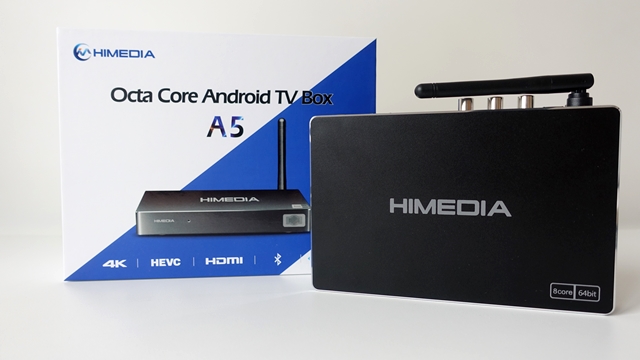
HIMEDIA FIRMWARE UPDATE ทุกรุ่น H8 H8 plus Q5 Pro Q10 Pro Q100 H8 Pro

HIMEDIA FIRMWARE UPDATE ทุกรุ่น H8 H8 plus Q5 Pro Q10 Pro Q100 H8 Pro

รวม Firmware และ Upgrade Hi media ทุกรุ่น

ล่าสุดของปี 2020

ดาวน์โหลด Firmware

รุ่น Firmware Version ขนาดไฟล์ ดาวน์โหลด
Q10 Pro
(Android 5.0 อัพเป็น Android 7.0)
HMD-2.0.4 2017-07-05.191425 720M
Q10 Pro
(สำหรับ Android 7.0 เท่านั้น)
HMD-2.1.4 2018-12-24.14510 634M
Q10 Pro (Update 2.1.4 เป็น 2.1.6)
(สำหรับ Android 7.0 เท่านั้น)
HMD-2.1.6 2020-07-08 551M
Q5 Pro
(Android 5.0 อัพเป็น Android 7.0)
HMD-2.0.4 2017-07-07.142542 720M
Q5 Pro
(สำหรับ Android 7.0 เท่านั้น)
HMD-2.1.4 2018-12-24.15222 634M
H8 Plus HMD-1.1.7 2017-03-15.193212 679M
H8 Lite HMD-1.1.7 2017-03-15.183641 679M
A5 HMD-2.0.8 2019-01-09.095816 711M
H1 HMD-1.1.2 2017-06-12.133351 754M
Q30 HMD-2.1.1 2018-12-25.18545 630M
H8 Pro HMD-2019-10-01 700M
H9 HMD-2019-07-04 675M
Q100 HMD-2020-04-03 134M


ล่าสุดของปี 2019

Firmware Download(NOTICE:DO NOT install previous firmwares once the firmwares are upgraded to the latest 3.0.2 version.)

Model Firmware Version Size Download Link
Q1 quadcore HMD-3.0.4 2016-08-18.181144 541M
Q3 quadcore HMD-3.0.4 2016-08-18.181144 541M
Q5 quadcore HMD-3.0.3 2015-12-11.095610 516M
Q8 quadcore HMD-3.0.4 2016-08-19.164101 541M
Q10 quadcore HMD-3.0.3 2015-12-14.092330 516M
M3 quadcore HMD-3.0.4 2016-08-22.170942 541M
H8 octacore HMD-1.1.7 2017-03-24.175902 679M
M6 quadcore HMD-3.0.4 2016-08-22.181143 542M
Q10 Pro
(Android N to Android N)
HMD-2.0.8 2018-04-03.195232 631M
Q10 Pro
(Android L to Android N)
HMD-2.0.4 2017-07-05.191425 720M
Q5 Pro
(Android N to Android N)
HMD-2.0.8 2018-04-04.164323 631M
Q5 Pro
(Android L to Android N)
HMD-2.0.4 2017-07-07.142542 720M
H8 Plus HMD-1.1.7 2017-03-15.193212 679M
H8 Lite HMD-1.1.7 2017-03-15.183641 679M
A5 HMD-2.0.5 2017-06-30.102521 880M
H1 HMD-1.1.2 2017-06-12.133351 754M
Q30 HMD-2.0.8 2018-04-08.195443 627M

Notice:

1. http://www.mediafire.com/file/sgwbfs3gqnduwf7/update.zip for Q10 Pro is used to upgrade from Android L OS to Android N 2.0.4 (Android L to Android N)

2. http://www.mediafire.com/file/sqbxyjm2sjb7bdx/update.zip for Q5 Pro is used to upgrade from Android L OS to Android N 2.0.4 (Android L to Android N)


การอัพด้วยวิธี เสียบ USB อัพจากเมนูปกติในเครื่อง


การอัพด้วยวิธีจิ้มหลังเครื่อง เมื่อเครื่องบูทปกติไมไ่ด้หรือทำวิธีแรกไม่ได้

Firmware Upgrade by Recovery Mode (user data will be cleared)

1.Download a new firmware and place the firmware onto the ROOT directory of a USB drive.

– ดาวโหลด เฟิมแวรืให้ตรงรุ่น ( หากผิด จะทำให้เครื่องเสีย ) เมื่อโหลดได้ไฟลื update.zip แล้ว ให้ใส่ในแฟลชไดรื วางไว้หน้าแรกสุดของ แฟลชไดร์

2. Plug the USB drive into an empty USB HOST on the SMART TV BOX.

– เสียบแฟลชไดรืเข้าไปที่ USB Port ช่องใดก็ได้

3.With the SMART TV BOX turned off,use a paper clip or pen point to press and hold the small pinhole restore button on the SMART TV BOX

– ก่อนเปิดเครื่อง ให้เอาไม้จิ้มปุ่ม Restore บริเวณด้านหลัง หรือข้างเครื่องโดยจิ้มค้างไว้ พร้อมกันนี้ให้กดเปิดเครื่องขึ้นมาพร้อมกัน

4.While pressing the restore button,turn on the SMART TV BOX. Continue to hold the restore button for 5 more seconds,then release it.

เมื่อเปิดเครื่องแล้ว ให้รอ 5 วินาที จะมีรูปหุ่น android ขึ้น และ มีหลอดดาวโหลด ด้านล่างวิ่งอยู่ แสดงว่า กำลัง Update เครื่อง อยู่ ( เมื่อขึ้นรูปนี้แล้ว สามารถปล่อย ไม้ที่จิ้มจาก ปุ่ม Restore ออกได้)

5.The SMART TV BOX will begin upgrading the firmware from the USB drive.

-กล่องจะอัพเดด ใช้เวลา 4-5 นาที

6. Wait for the SMART TV BOX to complete the upgrade. Please be patient as it may take around 5 minutes to complete.

– เมื่อกล่องอัพเดดแล้ว ใช้เวลา 5 นาทั และให้รอบูทเครื่องใหม่ เวลาบูทเครื่องเริ่มต้นครั้งแรก ใช้เวลาอีก 2-3 นาที